

Installation packages
Dragon Medical One 2026.3 is based on a new architecture that provides better performance, improved user experience and future extensibility.
Currently supported electronic health records (EHRs) include Epic Hyperspace, Epic Hyperdrive, Cerner Millennium, athenaClinicals, Meditech Expanse and more. For the complete list, please refer to the Dragon Medical One Product Comparison page. If you plan to use Dragon Medical One for other EHRs or applications, visit the Resource Center for the Dragon Medical One Long Term Service Release (LTSR).
As an individual user dictating into applications on your computer (Windows 10 or higher): Download the Dragon Medical One Installer.
If you are deploying Dragon Medical One in a larger system or as a virtualized application/virtual desktop: Download the XCOPY package or MSI package below.
Dragon Medical One Installer 2026.3 (v26.3.60491.0)
Use this installer to get started quickly on a single computer and dictate into applications that are running on the same computer. Download the installer, double-click it and follow the installation instructions. Windows 10 or higher is required and you will need the organization token that you received in your Welcome Kit email.
Download Dragon Medical One Installer
Once Dragon Medical One is installed, it will notify you when new versions are available when you launch the app. The latest version will always be available from this page.
Note: Depending on your security settings, Windows might mark downloaded files as unsafe and prevent the installer from running. To unblock the installer, right-click the .exe file and select Properties; on the General tab, click Unblock and Apply. You might also need to add the Dragon Medical One Installer to the list of allowed apps in your antivirus program. For more information, see: Information about the Attachment Manager in Microsoft Windows.
XCOPY deployment package 2026.3 (v26.3.60491.0)
In larger systems and virtual deployments, the XCOPY installation package enables you to deploy Dragon Medical One using simple file copy operations. You can customize the application flexibly by editing the application configuration file; for more information, see the Installation and Administration Guide.
Dragon Medical One needs to run in the same process space as the target application. If the target application is installed locally, Dragon Medical One should also be installed locally. Likewise, if the target application is deployed virtually, Dragon Medical One needs to be deployed virtually as well.
Dragon Medical One doesn't update automatically; the latest version will always be available from this page.
For more information on how to deploy your application in a virtual environment see: Virtual environment support.
Note: Depending on your Group Policy security settings, Windows might mark downloaded files as unsafe. Unblock the .zip file, if necessary, to allow proper execution of Dragon Medical One when started: Right-click the .zip file and select Properties; on the General tab, click Unblock and Apply.
MSI deployment package 2026.3 (v26.3.60491.0)
The Windows Installer package is MSI command line-only; no installation wizard is available. For information on mandatory and optional parameters, see the Installation and Administration Guide. To control deployment to users' local workstations across your system, you can use the MSI package to perform an SMS push installation.
Dragon Medical One doesn't update automatically; the latest version will always be available from this page.
 Download MSI package
Virtual environment support
Dragon Medical One was built from the ground up as a pure virtual application to allow for rapid deployment and help ease the burden on overworked IT staff. For doctors to dictate from an endpoint, you may need to install vendor-specific microphone and audio compression extensions.
Benefits
The Dragon custom audio channel significantly reduces the bandwidth requirements for audio transmission from the client end point to the virtual application. Dragon provides custom audio channel implementations for Citrix, Omnissa (formerly VMware) and RDS.
These custom audio channels are automatically installed on the server when you deploy the main Dragon Medical One application. The client components of the extensions still need to be installed on the client PC using the installation packages below.
For more information on the available audio solutions for your configuration, see Audio Routing Solutions in Virtualized Environments.
Compatibility
The Dragon virtual extensions are designed to be backward compatible from Dragon Medical One to the client end point. This means you can run newer versions of Dragon Medical One in your virtual environment and they will be compatible with older versions of their corresponding client end point extension. The following recommendations and restrictions apply:
- Compatibility for up to one year: New versions of Dragon Medical One are backward compatible with the corresponding end point virtual extensions for up to a year.
- Best practice (end point): We recommend that you update your client end point extension as soon as possible to benefit from fixes and optimizations applied to the extensions.
Dragon Citrix extensions v126.2.265: The Dragon Citrix extensions package includes a custom audio channel to increase audio quality and reduce bandwidth requirements for audio transmission from the end point to the virtual application on the Citrix server or virtual desktop. This package also includes a custom channel to enable Nuance PowerMic buttons in Dragon Medical One.
Note: Starting with Citrix Virtual Apps and Desktops 7 2109, the Virtual channel allow list policy setting will be enabled by default. This means that Dragon virtual extensions will no longer work with the default configuration. For more information, contact Nuance technical support.
Installation and troubleshooting guide: https://learn.microsoft.com/industry/healthcare/dragon-medical-one/citrix/
 Download
Dragon Omnissa extensions v126.2.265: The Dragon Omnissa (formerly VMware) extensions package includes a custom audio channel to increase audio quality and reduce bandwidth requirements for audio transmission from the end point to the virtual application on the Omnissa server or virtual desktop. This package also includes a custom channel to enable Nuance PowerMic buttons in Dragon Medical One.
Installation and troubleshooting guide: https://learn.microsoft.com/industry/healthcare/dragon-medical-one/omnissa/
 Download
Dragon RDS/AVD extensions v126.2.265: The Dragon RDS/AVD extensions package includes a custom audio channel to increase audio quality and reduce bandwidth requirements for audio transmission from the end point to the hosted application. This package also includes a custom channel to enable Nuance PowerMic buttons in Dragon Medical One.
Installation and troubleshooting guide: https://learn.microsoft.com/industry/healthcare/dragon-medical-one/rds/
Optional third-party microphone extensions:
Virtualization technology support varies by microphone supplier.
Philips SpeechMike: The Dragon PowerMic extensions for Citrix, Omnissa and RDS also support SpeechMike buttons. Select the Citrix, Omnissa and RDS download buttons above to download the extensions. Alternatively, contact Philips to get the latest version of the SpeechMike virtual extension.
Grundig Digta: Register at the Grundig support page, then select Digta Hardware Kit. The button extensions are in the Terminal Server Client folder.
PowerMic Mobile
PowerMic Mobile gives clinicians the freedom to roam from workstation-to-workstation, room-to-room and location-to-location to complete clinical documentation using their smartphone as a microphone at the desktop.
Deployment and end user setup
License types
The following license types are available:
- Account licensing: Your organization has licenses for a set number of users. You can manually assign licenses via the Nuance Management Center (NMC) or you can configure your organization to automatically assign licenses to your users when they log on (auto-provisioning).
- Enterprise licensing: Your organization has a license for an unlimited number of users. With an enterprise license, your organization must be configured to automatically assign licenses to your users when they log on.
Auto-provisioning
By default, when a user logs on to PowerMic Mobile with a new user name, the user is automatically added to your organization and a PowerMic Mobile license is assigned. You can turn this off at the organization level via NMC. Proceed as follows:
- In NMC, open the Organization Details page for your organization.
- Open the Provisioning tab and, in the left panel, click PowerMic Mobile.
- Deselect the Enable auto-provisioning for this product check box.
Installing and configuring PowerMic Mobile
Nuance provides two methods for software distribution. Both methods require configuration URLs that are specific to your organization. See the 'Getting Started' section of the Welcome Kit that was sent to your organization's point-of-contact or system administrator.
Your organization can use either method or both, depending on your environment and usage policies.
- Mobile Device Management (MDM): PowerMic Mobile MDM support
- Manual installation and configuration: See the 'Getting Started' section of your Welcome Kit.
Using PowerMic Mobile with Dragon Medical One
- Microphone selection: Select PowerMic Mobile from the Microphone list in Dragon Medical One.
- Automatic pairing: Log on to PowerMic Mobile and Dragon Medical One (in either order) with the same user name. If your users cannot use the same user name for PowerMic Mobile and Dragon Medical One, they will have to use manual pairing; for more information, see the PowerMic Mobile User Guide.
- Profiles: Your organization's specific configuration is saved on the mobile device as a profile that is created during setup. For more information see: Deployment.
- Users who work with PowerMic Mobile in multiple organizations will set up a profile for each one and select the profile corresponding to their current organization when they log on.
- Troubleshooting: See the PowerMic Mobile User Guide.
Technical specifications and requirements
- Virtualized environments: PowerMic Mobile does not require any additional components for virtualized environments. Users select PowerMic Mobile from the Microphone list when they log on.
- Bandwidth: PowerMic Mobile requires approximately 14 kbps to stream audio.
- Cellular data consumption: Dictating for 10 minutes per day, 22 days per month uses 16.5 MB (132 megabits) per month. Your users can configure their device settings to turn off cellular data or to prevent the application from working without WiFi.
- Battery consumption: PowerMic Mobile consumes approximately the same amount of battery as a phone call. The actual amount depends on the device, the age of the battery and other applications running on the device.
- macOS support: PowerMic Mobile works with Dragon Medical One running on macOS via virtualization solutions such as Citrix XenApps and Desktops or Omnissa/VMware Horizon. We have not found any performance or functional issues specific to Mac use.
- iPad support: iPads are supported, but PowerMic Mobile is not optimized for iPad screen sizes.
Best practices
Cellular data vs. WiFi
PowerMic Mobile uses WiFi or cellular data. It is recommended to connect primarily via a reliable WiFi network with the following characteristics:
- The network should be readily available on the user's device.
- The user should not need to log on to the network frequently.
- Access to the network should not time out.
- The signal strength should be consistent and not have frequent drop-offs.
- -67 dBm is considered the minimum signal strength for PowerMic Mobile. This ensures reliable and timely delivery of data packets. Consistent guidelines can be found online that recommend signal levels for target use.
Network switching
- The user's device should be set up to automatically connect to several networks when they are available.
- If the device is disconnected from the current network during recording, PowerMic Mobile will buffer 1.5 seconds of audio. If a second network is connected within 1.5 seconds, the buffered audio and new audio will be uploaded and there will be no disruption to the user.
- If a network connection is not established within 1.5 seconds, the microphone will turn off, the buffered audio will be discarded, and PowerMic Mobile will unpair from Dragon Medical One. When the network is restored, PowerMic Mobile will automatically pair with Dragon Medical One and the user can tap the record button to start recording again.
Recording
- Users tap the record button to turn the microphone on and off. It is recommended to turn the microphone off when not actively recording. Ambient noise will keep recording active in both PowerMic Mobile and Dragon Medical One.
- The microphone must be exposed and available when recording. For good sound quality when using a protective case, the microphone must not be covered.
If you have additional questions or need support, please contact Nuance technical support.
Mobile device management (MDM) support for PowerMic Mobile
Advantages of MDM
Using MDM to deploy and configure PowerMic Mobile provides the following benefits:
- Site administrators can centrally manage shared devices, including deploying and configuring PowerMic Mobile. This means that the site administrator or end user does not have to install PowerMic Mobile from the App Store or Google Play. New devices can be set up quickly.
- The configuration URLs are loaded via MDM. The user does not need to access the configuration URLs and does not need to understand how to use them; this reduces the amount of time needed for training and administration tasks.
- Removes the risk that the web browser or email client renders the configuration URLs incorrectly.
- Site administrators can conform to security standards by controlling which apps are installed on managed devices and how the apps are configured.
Deploying PowerMic Mobile via MDM
AppConfig standard
PowerMic Mobile supports MDM configuration via the AppConfig standard (appconfig.org). Most major MDM vendors have adopted the AppConfig standard, including Omnissa Workspace One (formerly VMware Airwatch), MobileIron, Cisco Meraki and Sophos. If your MDM solution does not belong to AppConfig, it might still be possible to use the PowerMic Mobile MDM configuration file with your MDM solution or to extract the configuration elements from the XML file and load them into your MDM solution. For more information, see the documentation provided by your MDM vendor.
Software requirements
PowerMic Mobile
-
You will need access to the PowerMic Mobile apps available in the App Store and Google Play. Search for these apps from your MDM solution:
iOS: https://apps.apple.com/us/app/powermic-mobile/id983002170?ls=1
Android: https://play.google.com/store/apps/details?id=com.Nuance.Mobility.DMic.Live&hl=en
iOS
-
The device must be enrolled with Apple's MDM protocol.
-
PowerMic Mobile must be provisioned and installed via Enterprise Mobile Management for the PowerMic Mobile configuration values to take effect.
For more information, see: https://www.appconfig.org/ios.html
Android
-
Android version 6.0 or higher.
-
Devices must be enrolled in Android for Work.
-
The PMM app must be provisioned and installed via Enterprise Mobile Management for the PowerMic Mobile configuration values to be applied. Use an MDM solution to push Android for Work public applications to devices. This process includes adding and approving applications for integration between your MDM solution and Android for Work from the Google Play Store which can be accessed from your MDM solution.
For more information, see: https://www.appconfig.org/android.html
MDM configuration file
You will need an edited version of the MDM configuration file. Copy the sample XML at the end of this page to a text editor, modify the values for the PMMConfigurationName and PMMConfigurationURL parameters within the <dict> element and save the file with a .XML file extension.
- PMMConfigurationURL: The configuration URL provided in the Nuance welcome letter. This parameter is required in the MDM configuration file. If the parameter value is blank or invalid, PowerMic Mobile will ignore it.
- PMMConfigurationName: The profile name that will be associated with the configuration URL. Your users will select this profile name when they log on to PowerMic Mobile. Provide a name that will be intuitive for your users, such as the name of the site or department. For example, "Main hospital" or "Pain center."
This parameter is optional. If you do not specify a value for the parameter, PowerMic Mobile will generate a profile name; for example, "Profile 1".
Note: You can define a single profile in the MDM configuration file. If your users need multiple profiles because they work with multiple NMS organizations, use the MDM file to define the profile that will be used by the majority of your users. Users who need access to additional organizations will need to add additional profiles in PowerMic Mobile via the corresponding configuration URLs. Gather the required configuration URLs from the Nuance welcome letters and then distribute them to your users via the Nuance-hosted web page or via email.
Validating a configuration URL
It might be necessary to validate your configuration URL; for example, if the URL has been edited for an on-premises deployment. Proceed as follows:
- Make the configuration URL accessible on a mobile device where PowerMic Mobile 4.0 or higher is installed. For example, send it in an email or access it from a web page. Be aware that the configuration URL is specific to Android or iOS.
- On the mobile device where PowerMic Mobile is installed, copy the configuration URL to the clipboard.
- Launch PowerMic Mobile.
- On the logon screen, tap Settings.
- Tap Add a Profile.
- Paste the configuration URL into the Add Profile screen.
If the URL is valid, the Valid URL message is displayed.
Deployment procedure
We use Omnissa Workspace One as an example MDM solution. The procedure is similar for other MDM solutions that support the AppConfig standard.
Proceed as follows:
- Log on to Omnissa Workspace One.
- In the sidebar, click Apps and Books and select List View.
- Open the Public tab and click Add Application.
- On the Add Application tab, select iOS or Android from the Platform list.
- Select Search App Store, enter PowerMic Mobile in the Name field and click Next.
- Click the PowerMic Mobile app icon in the search results.
- Click Approve to enable distribution of the app.
- On the Add Application tab, click Import from App Store or Import from Play and click Next.
- Make sure PowerMic Mobile is selected in the app list and click Import.
- Click Add Assignment and then click Save and Publish.
-
Complete the following fields in the Add Assignment dialog box:
Assignment Groups: Select the distribution groups to which you want to assign PowerMic Mobile.
App Delivery Method: Select Auto.
Deployment Begins On: Select a date to start installing PowerMic Mobile.
Managed Access: Select Enabled.
Application Configuration: Select Enabled.
- Click Upload XML and browse to the location where you saved the MDM configuration file.
- Click Add.
- Click Publish.
PowerMic Mobile will be installed on managed devices, starting on the date you specified. When your users launch PowerMic Mobile, it will already be configured with the profile defined in your MDM configuration file. To begin using PowerMic Mobile, users enter their user name and tap Log In.
Sample MDM configuration file
<managedAppConfiguration>
    <version>1.4</version>
    <bundleId>com.nuance.mobility.dMIC</bundleId>
    <dict>
        <string keyName="PMMConfigurationName">
            <defaultValue>
                <value>Enter the profile name here</value>
            </defaultValue>
        </string>
        <string keyName="PMMConfigurationURL">
            <defaultValue>
                <value>Enter your configuration URL here</value>
            </defaultValue>
        </string>
    </dict>
    <presentation defaultLocale="en-US">
        <field keyName="PMMConfigurationName" type="input">
            <label>
                <language value="en-US">Configuration Name</language>
            </label>
            <description>
                <language value="en-US">This is the default profile name for your organization in PowerMic Mobile.</language>
            </description>
        </field>
        <field keyName="PMMConfigurationURL" type="input">
            <label>
                <language value="en-US">Configuration URL</language>
            </label>
            <description>
                <language value="en-US">This is the configuration URL to set up the profile for your organization in PowerMic Mobile.</language>
            </description>
        </field>
    </presentation>
</managedAppConfiguration>
Documentation
Download these guides and visit the Learning Center for detailed information on installing Dragon Medical One, managing your organization and working with speech recognition.
Administration guides
End user help
See also
End-of-life policy
The rapid rise of the cloud computing model has fundamentally reshaped the software industry and the way software is delivered. Gone are the days of biannual software releases shipped on a DVD, replaced with a cloud distribution model that allows software manufacturers to rapidly innovate and easily distribute their solutions to cloud connected customers. Nuance is no exception, and we have used the cloud model to radically accelerate our ability to deliver new solutions, capabilities and features into the market and respond to our customers' needs.
Supported. A given major release or point release is supported for 12 months after the initial release date. During this period, Nuance will investigate any reported issues and make best efforts to address any confirmed defects in a future major, point or service release.
End of Support (EOS). If a major release or point release is more than 12 months old, it will still interoperate with our Nuance cloud, but it is no longer officially supported. Any issues reported against an unsupported release will not be analyzed or investigated.
End of Life (EOL). A major release or point release that is more than 15 months old will no longer function due to advances in the Nuance cloud infrastructure.
Third-party end-of-life support policy
Dragon Medical One relies on a modern software infrastructure in order to be able to provide frontend speech recognition in a highly secure manner. Key components include modern operating systems from Microsoft, the latest and most secure versions of the Microsoft .NET Framework, as well as solutions from virtualization vendors such as Citrix and Omnissa (formerly VMware). In keeping with standard industry practices, these vendors routinely discontinue support for older products. By default, when a third-party vendor such as Microsoft or Citrix no longer supports an existing product, Nuance also officially ends support of Dragon Medical One running in that environment. Although the product may continue to function, Nuance will not be able to address any performance, security or functional issues that may arise from using unsupported third-party software.
Service level agreement (SLA) history and service status
SLA history page
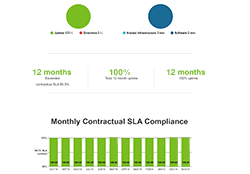
Dragon Medical cloud services provide real-time speech recognition for Dragon Medical One as well as hundreds of partner applications. At Nuance, we recognize the critical role of real-time speech recognition in creating robust clinical documentation and delivering timely, personalized patient care. In order to provide complete transparency, this status page provides historical insight into the overall uptime and SLA compliance of our Dragon Medical cloud services.
Nuance service status page
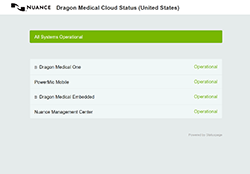
In addition to the SLA history page, Nuance also provides a service status page that provides a real time health check of our cloud services. If your users are experiencing any issues you can use this status dashboard to determine the health of our cloud services.
Technical support
Technical support from the Nuance Healthcare Solutions Support Center is provided during the term of the Service Agreement. An authorized contact (registration required) should submit an online support case from our Nuance Healthcare Support Platform web page.
Telephone support is recommended for emergency assistance (24x7) and follow-up or escalation of existing support cases created through our Nuance Healthcare Support Platform web page.
No on-site service is available for this product.
Web-based support
Registered Nuance Healthcare Support Platform customers have access to Knowledge Base solutions, plus the ability to submit support cases online. The average response time for web-based support cases is four (4) hours during normal business hours, 8:00 AM to 8:00 PM EST, Monday through Friday.
- Log in to Nuance Healthcare Support with your Nuance Healthcare Support Platform user ID and password.
- On the Home page, click the Contact support option, and then select Contact Dragon Medical Support.
- On the Contact Dragon Medical Support page, select Type and Case Urgency.
- In the Subject field, enter the subject of your case.
- Select Dragon Medical One as the product and then enter a description of your issue in the Description field.
- Click Confirm once you have entered all the required fields to create your case.
- Use the Post section on the right side of the Case Details screen to add attachments such as log files or error image files.
- For future reference, make note of the case number presented.
Telephone support
Telephone support is recommended for emergency assistance (24x7) and follow-up or escalation of existing support cases created through our Nuance Healthcare Support Platform web page.
- Call the Nuance Healthcare Solutions Support Center at 800-833-7776.
- At the prompt, say: "Support for Dragon Medical One". Your call will be answered by the next available support engineer.
- If you are following up on an existing support case, provide your support case number to the support engineer.
- If this is a new support case, have your customer account number ready; the support engineer will verify your customer, authorized contact and contract information and will open a new support case.
The Nuance Healthcare Solutions Support Center will provide product support to authorized contacts of Dragon Medical One customers during the term of the Service Agreement. The customer is responsible for registering, through our Nuance Healthcare Support Platform web page, two (2) trained authorized contacts per customer site, who may contact the Nuance Healthcare Solutions Support Center for technical support on Dragon Medical One.
The trained authorized contacts are defined as customer personnel possessing a reasonable level of operational competency with Dragon Medical One. This can be accomplished through a review of Dragon Medical One product documentation or hands-on product experience. A customer site is defined as any physical location or organizational entity that requires separate administration within the customer's environment.
Registered Nuance Healthcare Support Platform customers have access to Knowledge Base solutions, plus the ability to submit support cases online.
Registering authorized contacts
To register an authorized contact please email hc.support@nuance.com to have your Nuance Healthcare Support Platform account activated.
You will need to provide the following information in the email request:
- Your Company Name
- Oracle Customer Account Number: Enter the number provided in your Dragon Medical One Welcome Kit.
- Product Name: Enter Dragon Medical One.
- Contact Information: Enter the name, phone number and email address of each authorized contact to be registered.
When your account is activated, you will receive an email containing your Nuance Healthcare Support Platform account credentials. You can then log on to your account and take advantage of the site features. Approvals may require up to one (1) business day to process. If immediate support is needed during the approval process, please use the telephone support procedure.